Become an iSchooler
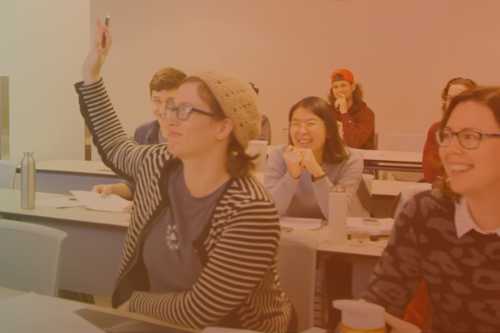
Our students learn how to think critically, make connections, and utilize empathy to help shape the future of information and technology.
Jobs at the iSchool
We welcome applicants with diverse academic and work experiences to join our department as educators, staff members, and innovators.
iSchool 75: Connecting People, Information, and Technology since 1948
At the School of Information, we are changing the future by engaging the present and preserving the past. Research and teaching at the iSchool changes the ways that we interact with information and technology, changes how information can make the world a better and fairer place, and changes the ways we protect and preserve our collective memory. Evolving and adapting to an ever changing world of information, the iSchool is the nexus of innovation and interdisciplinary scholarship focused on the human, social, cultural, and technical aspects of information.